TuneCarry: Offline Music
- 3.6
- Rating
- 100.00K
- Installs
- Free
- Price

 Analysis by App-foxy
I like music apps that stay out of the way. When I want to listen to songs I already keep on my phone, I do not necessarily need recommendations, social feeds, streaming radio, or a large online catalog. I need a dependable player that helps me find local files quickly and keeps playback comfortable when I am offline. TuneCarry: Offline Music is built around that simpler idea, and after spending time with it, I see why it may appeal to people who prefer control over their own collection.
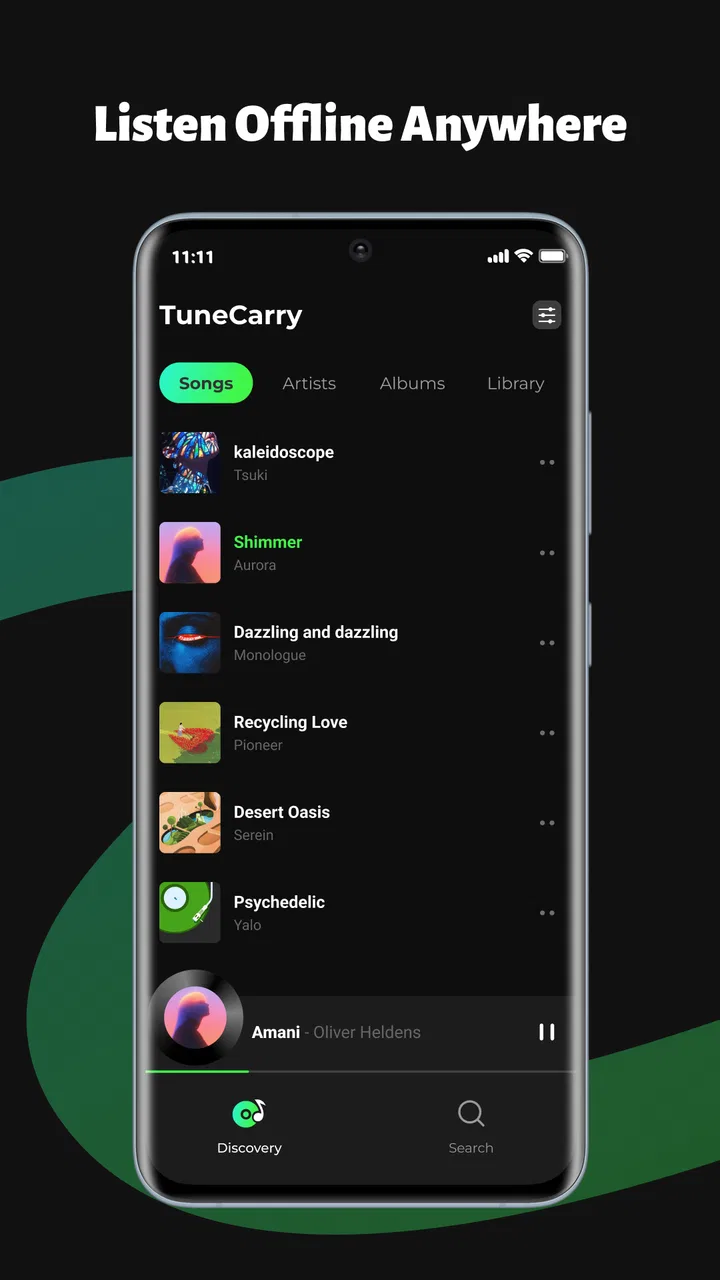
This is a free Music & Audio app from Photos & Videos Download Tools. Its central job is to organize music stored locally, let me arrange it into playlists or folders, and provide lock screen controls while a song is playing. It is not trying to replace a streaming subscription. That distinction matters, because the app is most useful when your music already exists on your device and you want a cleaner way to carry it around.
The current release is version 1.0.1, and the app runs on Android 8.0 or later. It is rated for Everyone, which fits the straightforward nature of the experience. The listing shows a 3.6 average from 47 ratings and over 100 thousand installs, so there is enough public interest to make it worth considering, although the rating also suggests that expectations should remain realistic rather than assuming a completely polished player.
You May Also Like

 AccuWeather: Weather Radar
AccuWeather Review: A Quick, Clear Forecast for Everyday Decisions
For everyday plans, the best forecast is the one you can understand quickly. AccuWeather makes rain timing, radar, and local conditions easy to act on, with a few trade-offs.

 Hill Climb Racing
Why Hill Climb Racing Still Turns Crashes Into One More Run
A tiny car, a bumpy hill and one more upgrade: Hill Climb Racing keeps resurfacing because its simple chaos makes every near-miss feel personal.

 AliExpress - Shopping App
AliExpress Makes Global Shopping Feel Personal, but Shoppers Bear the Risk
AliExpress turns a global marketplace into a pocket-sized discovery engine. Its reach is useful, its shopping loop compelling, and its trade-offs easy to miss.

 Lords Mobile: Kingdom Wars
Lords Mobile Is a Kingdom-Building Routine, Not a Quick Match
A case-by-case verdict on the building, battles, device demands, and social commitments that make Lords Mobile rewarding for some players and exhausting for others.

 PDF Scanner app - TapScanner
TapScanner Makes Paperwork Easier to Capture, Check, and Share
TapScanner makes scanning with a phone feel less like a rescue operation and more like a dependable step in getting work done. Its capture tools are useful, though not flawless.

 Block Blast!
 Shows How Much a Puzzle Game Can Leave Out
A quiet grid game shows why puzzle players increasingly value instant clarity, repeatable skill and low-pressure play—and where the genre still needs to catch up.
More From Our News Desk
View All News


How TuneCarry fits into everyday listening
When I decide whether a local player belongs in my routine, I look beyond whether it can start a song: I want to know how much sorting it asks of me and what to check when playback or browsing feels off. TuneCarry suits listeners who already keep tracks on their phone, but a little preparation can make that collection easier to use. I’d begin with a few simple setup checks before building a playlist habit.
A simple starting point for a local library
The first useful habit is to treat TuneCarry as a front end for music already saved on the phone. Instead of opening a streaming service and searching its catalog, I would begin by checking how my files are arranged. If albums, artists, or personal recordings are scattered across several folders, the folder view becomes more valuable than a conventional artist list. It gives me a practical way to think about the collection as it actually exists on storage.
That approach is especially helpful for music that is awkward to find in streaming apps: live recordings, purchased downloads, mixes, language-learning tracks, voice-backed practice files, or songs copied from an older device. A local player does not need to decide whether something belongs in a commercial catalog. If the file is available to the app, the point is simply to make it playable and easier to revisit.
I would set up the library before relying on it during a commute or trip. Put related files into sensible folders, then use playlists for listening situations rather than trying to make one giant queue do everything. A folder can represent an album or a source, while a playlist can represent an activity such as walking, studying, or winding down. Keeping those two purposes separate prevents the library from becoming difficult to maintain later.
What playback feels like in a normal day
A realistic use case is an evening walk where I want a familiar sequence of songs and do not want to spend mobile data browsing. I can prepare a playlist at home, start it before leaving, and use the lock screen controls when I need to pause or skip. That is a small workflow, but it removes several interruptions: no repeated searching, no dependence on a signal, and no need to unlock the phone for every basic command.
The same setup works for a flight, a gym session, or a place where reception is unreliable. It also suits people who keep a small collection of audio on an older phone and want to avoid installing a heavy streaming client. The important trade-off is that TuneCarry does not solve the problem of obtaining music. It helps manage local tracks; it is not a discovery service or a replacement for legally acquiring the files you want to hear.
I also appreciate the difference between a local player and a streaming app when I am trying to preserve a particular listening order. Streaming services are excellent for finding new music, but their interfaces often encourage browsing, recommendations, and changing queues. TuneCarry makes more sense when the decision has already been made: these are the tracks I want, in this order, without another layer of online content competing for attention.
Playlists and folders serve different people
Folders are the faster option for someone who thinks in terms of storage. If I have separate directories for albums, podcasts saved as audio files, or recordings from different projects, browsing those locations can be more direct than editing metadata. This is also useful when file tags are incomplete or inconsistent, because the folder structure remains visible even when artist and album information is not perfectly organized.
Playlists are better when the listening context matters more than the original location. I might combine tracks from several folders into one quiet-work list, then create another for travel. The practical tip is to keep playlists focused. A short list is easier to adjust when I discover that one track does not fit the mood, while a huge catch-all playlist eventually becomes another form of clutter.
For a family phone or a shared tablet, folders can also make the collection easier to understand. One person’s music can remain in a clearly named location while another person’s recordings stay separate. This is not the same as a full multi-user system, so I would not treat it as privacy protection, but it can reduce accidental mixing and make everyday browsing less confusing.
Lock screen controls are more important than they sound
The lock screen controls are one of the most practical parts of the concept. When I am walking, cooking, or carrying a bag, the difference between a useful player and an annoying one is often whether I can pause or skip without stopping what I am doing. Having those controls available means playback becomes a background task instead of a reason to keep the phone open.
There is a useful habit here: start the intended playlist before putting the phone away, then use the lock screen only for small corrections. That is more reliable than trying to rebuild a queue while moving. It also reduces the chance of accidentally opening another app or losing the place in the current listening session.
At the same time, lock screen behavior can depend on the phone’s own notification and battery settings. I would check that media controls are allowed to appear and that the system is not aggressively stopping background playback. That is not a special TuneCarry feature; it is a general Android consideration, but it matters greatly for an offline player whose appeal depends on uninterrupted listening.
Settings I would check before building a routine
Because the app is focused, I would spend a few minutes checking its available playback and organization settings rather than immediately filling it with playlists. The first question is how the library is displayed: by folder, playlist, or the categories that best match the way I store music. Choosing the view that reflects my habits saves more time than repeatedly searching for the same tracks.
I would also confirm how the app handles the current queue. A playlist may be useful for a planned session, while a folder may be better for browsing casually. Knowing whether starting a new item replaces the current sequence or adds to it prevents one of the most common local-player frustrations: expecting a deliberate list and ending up with an accidental mixture of tracks.
Playback controls deserve their own check. I would test pause, skip, and resuming after locking the phone before depending on them outside the house. This quick test tells me whether my device’s system settings are cooperating. If the controls behave normally, TuneCarry becomes much more convenient; if they disappear, the problem may be the phone’s background restrictions rather than the music library itself.
It is also worth deciding where organization should happen. If I regularly copy files from a computer, I would make the folder structure consistent there first. If I mostly create listening moods on the phone, I would invest more time in playlists. Trying to repair a messy storage layout entirely inside the player can be slower than fixing the source folders once and letting the app reflect that structure.
Faster patterns for experienced users
The fastest workflow I found is based on repeatable batches. Instead of adding one song whenever I remember it, I would gather a group of related files, place them in a clearly named folder, and then create one playlist only when I need a different order or combination. This keeps the library maintainable and avoids spending more time arranging music than listening to it.
Another useful pattern is to maintain a temporary playlist for a specific trip or project. Once the event is over, I can remove that list without disturbing the folders that hold the original collection. This is cleaner than repeatedly moving files around just to prepare for a short-term need. It also protects the underlying organization from becoming a record of every brief listening session.
For offline reliability, I would prepare the collection while connected to a charger or before leaving home, then play a few tracks from each important folder. That simple check can reveal a misplaced file, an unsupported recording, or an unexpectedly empty location before the music is needed. A local player eliminates network dependence, but it does not eliminate the need to keep the local library tidy.
I would also use the lock screen as a control surface, not as a library browser. Choosing music from the full app and making small changes externally is faster and safer. On a crowded playlist, repeated skipping may be less efficient than returning to the app once and selecting the right point. The best shortcut is often a better-prepared queue rather than more tapping during playback.
Where the app is stronger than the usual alternatives
Compared with a streaming service, TuneCarry is more focused on ownership and offline access to files already on the phone. There is no need to search for a song that is already in the collection, and the listening experience is not tied to an online catalog. For people who dislike recommendations or want a quiet player for personal recordings, that simplicity is a genuine advantage.
Compared with a basic file manager, it provides a more suitable listening environment. A file manager can open audio files, but it is not usually the place I want to control a continuing session. Playlists and lock screen controls make the music feel like a library rather than a series of individual files buried in storage.
Its position is less convincing against a mature, feature-rich local music player. Those alternatives may offer deeper tagging tools, equalizer controls, format handling, search options, or more elaborate queue management. If I need detailed audio customization or a large collection with carefully maintained metadata, I would compare TuneCarry closely with established players before moving everything over.
Limits that affect the buying decision
The free price makes experimenting easy, but free does not automatically mean complete. TuneCarry’s appeal depends on whether its focused feature set matches the way you listen. Someone who expects cloud synchronization, streaming discovery, advanced audio processing, or a broad podcast workflow may find the experience too narrow.
The public rating of 3.6 is a useful reminder to test the basics on your own phone. I would pay attention to how quickly the library appears, whether my folder structure is easy to browse, and whether playback continues as expected after the screen is locked. Those checks matter more than a feature checklist because local music apps can feel very different depending on storage habits and system behavior.
The app is also not the right choice for someone who has no local music collection and wants instant access to new artists. A streaming service is better for discovery, editorial playlists, and a catalog that is ready immediately. TuneCarry becomes compelling only after the user has files to organize or a clear reason to keep listening offline.
Another limitation is that folders and playlists require some personal discipline. If I copy music into random locations, use vague names, and never remove duplicates, the app cannot magically turn that into a clean library. Its organization tools can support a good system, but they work best when I make a few consistent decisions about where files belong.
Who should install it, and who should skip it
I would recommend TuneCarry to someone with a personal offline collection who wants a lightweight routine: place files in sensible folders, create a few purpose-built playlists, and control playback from the lock screen. It is particularly suitable for travel, unreliable connectivity, personal recordings, and listeners who prefer their own music to an algorithmic feed.
I would be more cautious if your collection is enormous, heavily dependent on precise metadata, or spread across several devices. In that situation, synchronization and advanced library management may matter more than the straightforward local approach. A dedicated, mature music player could be a better fit if you need specialized controls or spend a lot of time adjusting audio behavior.
I would also skip it if your main goal is discovering music. The app’s value starts with tracks you already have, so installing it without a local library may leave you wondering what problem it is meant to solve. It is a tool for carrying and arranging music, not a service for supplying it.
My final view after settling into the workflow
What I like most about TuneCarry is its clear boundary. It does not ask me to turn local listening into another online activity. I can prepare a collection, separate folders from playlists, start playback, and use the lock screen for the controls that matter most. That makes it easy to recommend to a friend who wants dependable offline listening without unnecessary distractions.
My recommendation comes with a condition: keep expectations aligned with the app’s purpose. It is free, accessible on Android 8.0 and later, and aimed at Everyone, but its focused design will not satisfy every listener. The strongest experience comes from a tidy local library and a few repeatable habits, not from expecting it to behave like a streaming platform or an advanced studio player.
For me, the best way to use TuneCarry: Offline Music is as a calm daily utility. I would organize important tracks into folders, reserve playlists for specific situations, test lock screen playback once, and prepare queues before leaving home. Those small steps turn a basic local collection into something genuinely convenient. If that sounds like the way you listen, this app is worth trying; if you want discovery, synchronization, or deep audio control, another category of player will serve you better.
FAQs for TuneCarry: Offline Music
01What is TuneCarry: Offline Music, and how does it work?
TuneCarry: Offline Music is designed for listening to music without relying on a constant internet connection. After adding or downloading supported audio files, you can organize songs into a personal library and play them offline. During testing, the experience felt most useful for commutes, flights, travel, or areas with unreliable mobile data. Availability of certain features may depend on the app version and device platform.
02Can I use TuneCarry: Offline Music without an internet connection?
Yes, offline playback is the main reason to use TuneCarry. Music that has already been downloaded or imported to the device can generally be played without Wi-Fi or mobile data. However, an internet connection may still be required initially for downloading content, syncing information, displaying advertisements, or checking account and app settings. It is best to prepare your library before leaving home and confirm that the tracks play in airplane mode.
03Does TuneCarry: Offline Music include songs for streaming, or do I need my own music files?
TuneCarry’s exact music sources depend on the version available in your region and the platform you are using. In general, users should not assume that every commercial song is included automatically. The app may work primarily with music obtained through supported downloads or files already stored on the device. Before installing, check its current store description and permissions to understand whether it supports local files, in-app downloads, or both.
04Is TuneCarry: Offline Music free to download and does it contain ads or in-app purchases?
The app may be available to install at no initial cost, but free access does not always mean that every feature is unlimited. Advertising, premium tools, subscription options, or one-time purchases can vary by release and operating system. I recommend reviewing the app-store listing before downloading, especially the in-app purchase section. Also check whether offline downloads, advanced organization, or an ad-free experience require payment.
05What permissions and devices does TuneCarry: Offline Music require?
A music player may request access to local storage or media files so it can find and play songs saved on your device. Depending on its features, TuneCarry may also request notification, network, or background playback permissions. These requests should be reviewed carefully and compared with the app’s purpose. Compatibility can differ between Android and iOS, so verify the listed operating-system requirements, storage needs, and recent update date before installation.
Pros
- Downloads songs for listening without an internet connection.
- Simple playback controls make the app easy to use on the go.
- Offline access helps reduce mobile data consumption.
- Useful for travel
- flights
- and areas with unreliable connectivity.
- Can keep music available when streaming services have no signal.
Cons
- Offline downloads may require substantial device storage space.
- Music availability depends on the app’s supported sources and formats.
- Downloaded tracks can become inconvenient to manage in large libraries.
- Some features may be limited behind ads or in-app purchases.
- No internet access may prevent artwork
- metadata
- or library updates.

TuneCarry: Offline Music
Gallery